Set up your loyalty
program in 10 minutes

A step-by-step walkthrough of the dashboard. We'll point out exactly what to fill in along the way.

Set up your dashboard
Open admin dashboard
backagain.au/admin
Opens in a new tab. Bookmark it for later.
1

Open your admin dashboard

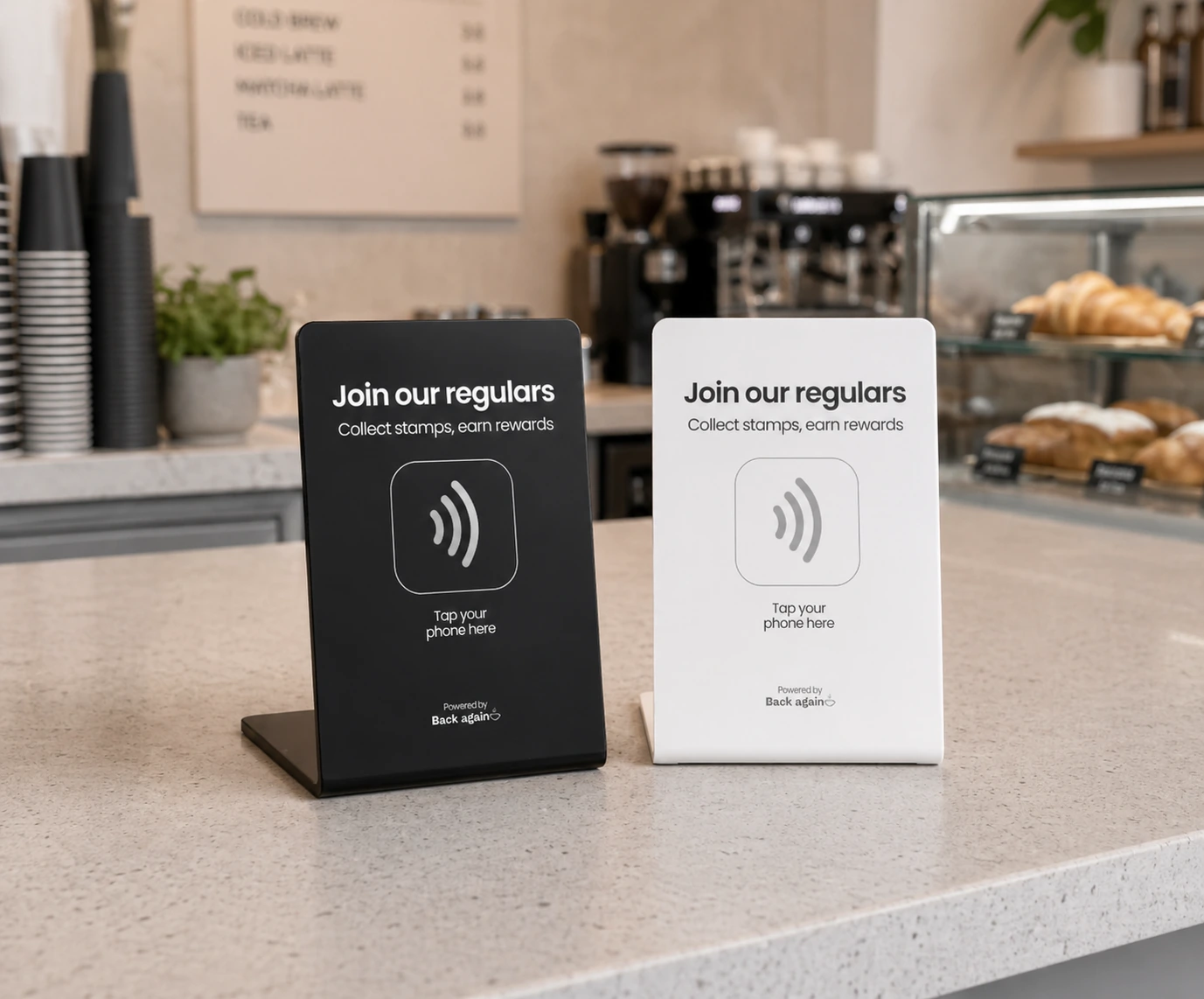
Your NFC sign has arrived. The next thing to do is open the dashboard in a new tab. We recommend bookmarking it so you can come back any time.

  • Click the button to open the dashboard in a new tab
  • Bookmark the URL so you can find it again
  • Keep this guide open in your current tab while you set up
2

Create your account

Tap Sign up, enter your email and name, and we'll send a confirmation link. Click it to log in.

  1. 1Tap the Sign up tab
  2. 2Enter your email address
  3. 3Enter your name
  4. 4Click Send link, then check your inbox
backagain.au/admin
Back Again

Cafe owner login

Create your account.

your@email.com
Your name

By signing in I agree to the Terms of Use.

3

Create your café

Once you're signed in, the dashboard will prompt you to create your first café. Fill in the essentials and you're ready to start customising. You can edit any of this from Settings later.

  1. 1Café name (appears at the top of your loyalty card)
  2. 2Stamps required for a reward
  3. 3Reward text (what customers see, e.g. "Free coffee after 8 stamps")
  4. 4Address (auto-completes as you type)
  5. 5Click Create cafe to finish
backagain.au/admin

Create a cafe

Demo Cafe
demo-cafe
8
Free coffee after 8 stamps
https://g.page/r/...
e.g. 123 Collins St, Melbourne VIC 3000
4

Customise your loyalty card

Open the Loyalty card tab. The live preview on the right updates as you change the design and rules on the left.

  1. 1Stamp icon (coffee, star, heart, tick or badge)
  2. 2Card colour (pick a preset or use your own brand hex)
  3. 3Stamps to reward (set how many stamps unlock the reward)
  4. 4Reward text (what customers see on the card)
  5. 5Live preview shows exactly what customers will see
backagain.au/admin

Card design

Stamp icon
Card colour

Stamp rules

Stamps to reward
8
Reward text
Free coffee
Stamp cooldown
Welcome bonus
Double stamps on a new customer's first visit.

Live preview

What customers see when they tap.

Loyalty card
5 / 8
Reward
Free coffee after 8 stamps
Cardholder
James W.
5

Turn on automatic emails (optional)

On the Campaigns tab you'll see two cards. Toggle either one on, write your offer, and they run automatically from there. You can preview or send yourself a test email before going live.

  1. 1Toggle Win-back email on
  2. 2Set how many quiet days trigger the email (14 to 90)
  3. 3Write a short message, or leave it blank for the default
  4. 4Set the offer message, e.g. "Free coffee on your next visit"
  5. 5Preview or send a test email to yourself
backagain.au/admin
Win-back email
Automatically email customers who've gone quiet.
Days since last visit30 days
Offer valid for3 days
Message (optional)
It's been a little while since your last visit. Pop back in this week, there's a coffee waiting with your name on it.
The opening of the email. Leave blank to use the default.
Offer message
Free coffee on your next visit
Terms & conditions (optional)
Weekdays only, one per customer.
Birthday email
Send a personalised birthday offer.
Days before birthdayOn the day
Birthday message (optional)
We hope your day is full of great coffee and even better company.
Offer message
A free slice of cake on us. Happy birthday!
Terms & conditions (optional)
Valid for 14 days. Dine-in only.
6

Add a special offer (optional)

On the Special offer tab, set up a time-limited deal that appears on every customer's loyalty page during the window you choose. Great for clearing pastries at 3pm or driving traffic during a quiet hour.

  1. 1Toggle the offer on
  2. 2Enter the offer title and a reference price
  3. 3Upload an image (optional, but recommended)
  4. 4Pick the days of the week it runs
  5. 5Set the start and end times
backagain.au/admin
Special offer
Shown to customers right after they collect a stamp.
Offer title
$10 Ham & Cheese Toastie
Reference price
$15
Offer link (optional)
https://…
Offer image (optional)
Active days
Start time
14:00
End time
16:30
Activate at the counter
7

Load your café URL onto the sign

Your NFC sign is blank when it arrives. You'll use a free app called NFC Tools to write your café's loyalty page URL onto it. Takes about a minute.

  1. 1Download NFC Tools (free) on the phone you'll use to write the tag
  2. 2Copy your café URL (including the tag id at the end) from the Settings tab in your dashboard
  3. 3Open NFC Tools, tap Write, then Add a record, then URL/URI
  4. 4Paste your café URL, click save and tap Write
  5. 5Hold your phone against the NFC sign until the app confirms
NFC Tools app icon

NFC Tools

To read and write NFC tags

8

Place your NFC sign at the counter

Position the sign where customers naturally settle while ordering or paying. Right next to the till works best.

  • At eye-level when standing at the counter
  • Away from metal surfaces (they interfere with NFC)
  • Visible enough that staff can point to it

Tap zone

Customer holds phone over the sign for ~2 seconds

  • At eye-level when standing at the counter
  • Away from metal surfaces (interferes with NFC)
  • Visible enough that staff can point to it
Customer tapping phone with loyalty card
9

Test it works

Before you tell customers about it, run through the experience yourself end-to-end.

  • Tap your phone against the sign
  • Sign up with your own email
  • Collect your first stamp
  • Check the dashboard, you'll see the stamp appear in real time

If nothing happens when you tap

NFC is on by default on most iPhones (iOS 14+) and Androids. Make sure the screen is on and the phone is held to the sign for ~2 seconds.

Common questions

Do I need to integrate with my POS?

No. Back Again runs completely separately. Your existing till and payment system stay untouched.

How do customers sign up?

They tap the sign, enter their email, done. No app to download, no password to remember.

Can I pause campaigns or take a break?

Yes. Toggle anything on or off from your dashboard any time. Your data stays intact.

What if I have multiple cafés?

Add each café to your account from the sidebar. Each gets its own loyalty card, sign, and analytics.

Stuck on a step?

Email us and we'll have you up and running in minutes.